How to work with the Media service
Our Media Service provides the images in the appropriate sizes. This article describes the pain and a modern solution for html clients: Responsive images
Thumbnail creation
We are using AI to resize and crop the pictures. The service analyzes the image, identifies the region of interest (ROI), and generates smart cropping coordinates based on the ROI.
Service is taking the identifier of an ImageObject in our Infocenter and processes its content image.
Special handling for Logo images
Images with additionalType Logo have special processing:
- No format conversion: The original image format is preserved (e.g., PNG remains PNG)
- Center crop only: Smart crop with AI is not applied; only center crop is used
- No bibliography: Copyright information is not added to the image
- SVG support: SVG images are returned without resizing (as they are vector graphics)
This ensures that logos maintain their original quality and format, which is important for branding consistency.
Supported formats
- jpg/jpeg (default)
- webp
The output format can be specified in two ways:
- File extension: Include the extension in the URL path (e.g.,
{identifier}.webp). - Accept header: Set the
AcceptHTTP header to the desired MIME type.
URL Pattern
https://media-v2.discover.swiss/image/{identitifier}[.{extension}]?width={w}&height={h}
Example
https://media-v2.discover.swiss/image/img_4kq_fgddiebd?height=300&width=250
Parameters
| Parameter | Type | Description |
|---|---|---|
| identifier | string | Identifier of the ImageObject. |
| extension | string | Image format. Posible values: jpg (default), jpeg and webp. Optional. Ignored for Logo images. |
| width | int | Width of the thumbnail, in pixels. |
| height | int | Height of the thumbnail, in pixels. |
| nobiblio | bool | If true, removes bibliography watermark from the image. If image is too small (less than 150x150) - text excluded by default. Always true for Logo images. |
| fp-x | float | X-coordinate of the focus point (0.0–1.0, from left). Must be used together with fp-y. When set, disables AI smart crop. |
| fp-y | float | Y-coordinate of the focus point (0.0–1.0, from top). Must be used together with fp-x. When set, disables AI smart crop. |
The image references in all Infocenter objects is extended by the basic thumbnail url:
{
    "@id": "https://api.discover.swiss/info/v2/imageObjects/img_4kq_fgddiebd",
    "identifier": "img_4kq_fgddiebd",
    "contentUrl": "http://img.oastatic.com/img/56338413/.jpg",
    "thumbnailUrl": "https://media-v2.discover.swiss/image/img_4kq_fgddiebd",
    "copyrightNotice": "Andrea Badrutt, Destination Davos Klosters",
    "dataGovernance": [
        ...
    ]
}
Warning
Open Data subscriptions: The thumbnailUrl field is not provided for partners using an Open Data subscription. Use the contentUrl directly if you need to reference the original image.
Cropping behaviour
When both width and height are specified, the service selects a cropping strategy in the following priority order:
- Focus point crop - if
fp-xandfp-yare provided, the image is cropped around the specified point. AI smart crop is skipped entirely. - AI smart crop - if no focus point is set, Azure Cognitive Services analyses the image and selects the most relevant region.
- Center crop - used as a fallback when the image does not meet AI requirements or no smart crop region is available.
Focus point crop
Use fp-x and fp-y to manually control which part of the image is kept after cropping. Both parameters must be provided together.
- Values are normalised coordinates in the range
0.0–1.0 fp-x=0.0is the left edge,fp-x=1.0is the right edgefp-y=0.0is the top edge,fp-y=1.0is the bottom edge- Values outside
[0.0, 1.0]are clamped automatically
The service crops the largest rectangle that matches the requested aspect ratio and places the focus point at its centre. If the centred rectangle would exceed the image boundaries, the crop is shifted to stay within bounds.
Example - crop a 16:9 thumbnail keeping the focus on the right side of the image:
https://media-v2.discover.swiss/image/img_4kq_fgddiebd?width=1600&height=900&fp-x=0.8&fp-y=0.5
Image bibliography
discover.swiss automatically adds bibliography to the picture served by the media service. The author and the source are presented in the picture, in case it is an unknown author, the provider name will be used. With the query parameter 'nobiblio=true' you can disable the automatic inclusion of the bibliography.
Note: Bibliography is never added to Logo images, regardless of the nobiblio parameter.
Bibliography might be one of the next:
- Author given name + author family name + source name
- Author given name + author family name (if source name is missing)
- Provider name (if all above is missing)
Check also general bibliography topics.
Info
The bibliography text is additionally available in the copyrightNotice property. See example above.
Info
The image should be 300-250 px for the bibliography to be visible (height=300&width=250). The bibliography will be excluded if the image is too small. The decision will be done based on the ratio of the picture and therefore there is no clear rule when it automatically disappears.
Bibliography example:
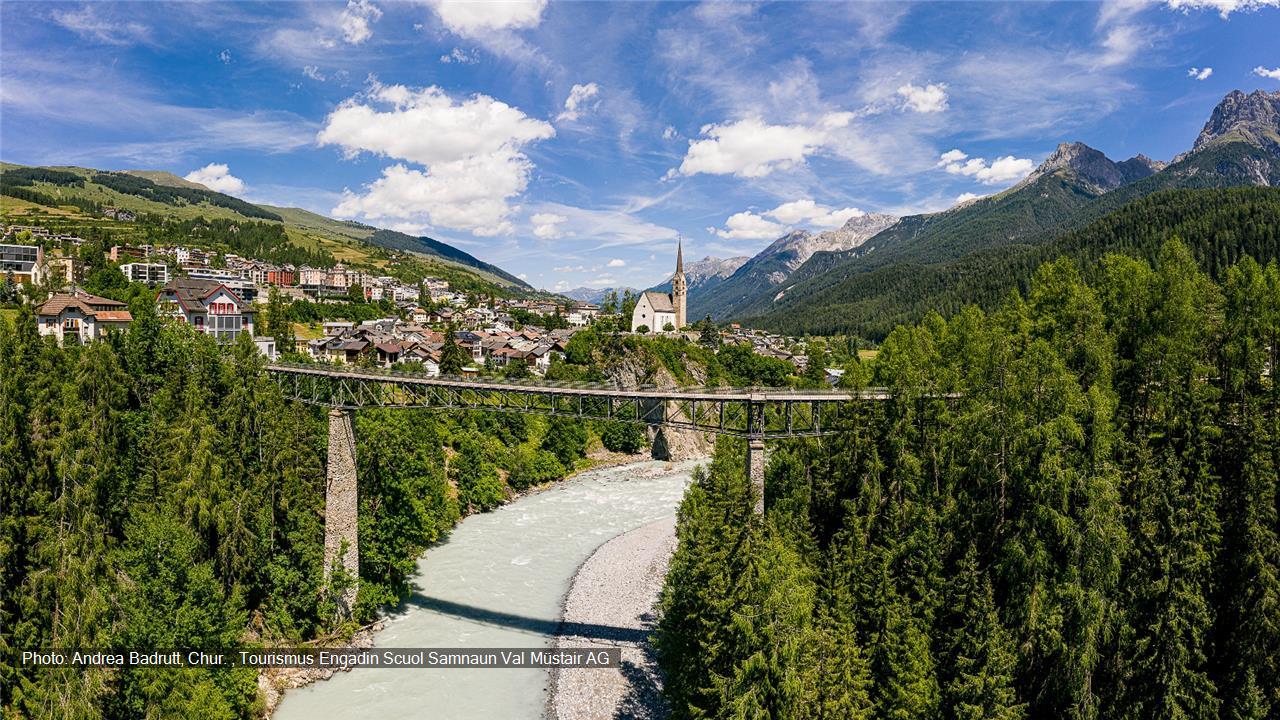
Tour and POI static map image
https://media-v2.discover.swiss/mapimage/{identifier}?width={w}&height={h}
Returns image with tour path
| Parameter | Description |
|---|---|
| identifier | Identifier of the image-object |
| width | Width of the thumbnail, in pixels. |
| height | Height of the thumbnail, in pixels. |
| maptype | Map type / style which should be used. |
| color | Color which should be used for the tour line |
| icon | Icon provided as URL to a PNG which should be used as PIN on the map for static POI maps |
Features
- If both width and height are missing or less than 0, the picture is returned in its original size.
- If one of the parameter is bigger than the original, this parameter is set to original. The ratio is kept.
- If only one is missing the ratio is kept.
- If any exception occurs the picture is returned in its original size.
- If the ImageObject or the in contentUrl referenced image doesn't exist "404 Not found" will be returned.
Sample app
You can check the feature in our sample app as well: demo.discover.swiss